
Once a form has been created, you will notice signature fields at the bottom of the form, as follows:
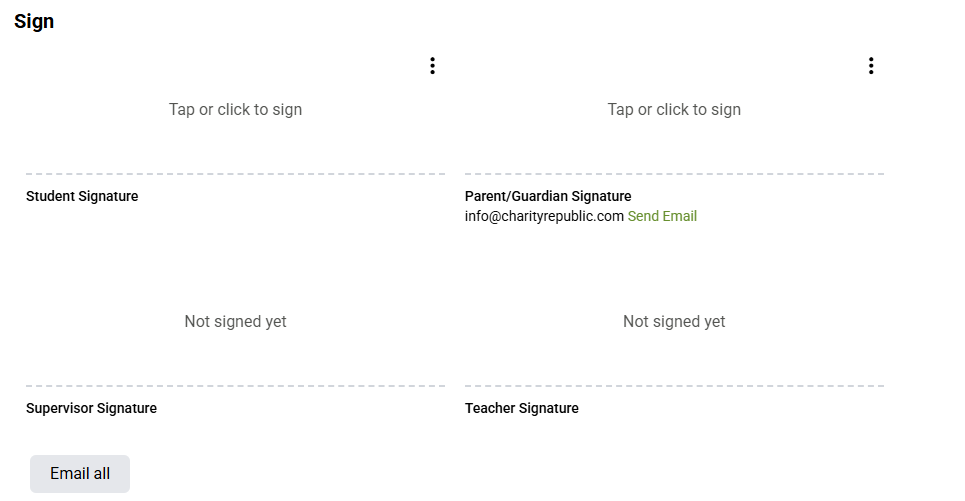
1. Student Signature: Click on the ‘Tap or click to sign” line
2. A pop-up window will appear where a signature can be added. Add your signature and enter or revise First Name, Last Name and Email address (these fields will typically autofill for you).


NOTE: A signature can be added to any touch screen with a finger or stylus. A signature can also be added via any computer with a computer mouse.
3. Click Sign
Once a signature is added, the signature will appear as follows:

4. Click Save in order to save the signature, or Save and Export the form in order to export the signature to a PDF form. Print the PDF form or save the form electronically when you are ready.

My Signature
Students can save their signatures to quickly and easily sign forms. You will notice an Insert My Signature checkbox.
1. Click Tap or click to sign
2. Add signature and select the Save as my signature checkbox to save the signature for future forms, followed by clicking Sign.

3. Now, when you sign a form, you can either select the 3-dot menu and click Sign with saved signature or the  button above the signature box, to instantly sign a form.