
Teachers can lock and unlock forms to control editing access. When a form is locked, no further changes can be made to the form fields, with the exception of signatures. Signatures can still be added or requested when a form is locked.
 Students can view the contents of a locked form but they can’t edit any fields.
🔒Forms can be locked individually or in bulk.
Locking Multiple Forms
#1: Click the Forms tab in Hour Republic
#2: Select one or more previously created forms
#3: Click the lock icon at the top of the screen ( ). Once clicked, form(s) will automatically be locked and a lock icon will appear beside the selected form(s).

 In order to unlock form(s), follow the same process by simply selecting a locked form and clicking the Unlock icon (
 ).
).
Locking an Individual Form
Individual forms can be locked in the main Forms section as well as when the form is open for editing.
#1: Click to open a previously created form
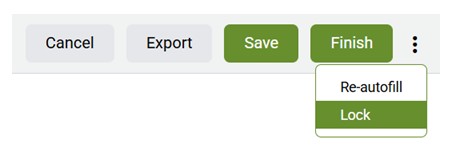
#2: Click the 3-dot menu (top-right), and select Lock from the drop-down menu
#3: The following text box will appear at the top of a locked form:

Click the Unlock button in order to unlock a form.