
A student’s employer is automatically carried over to their next weekly log, making future logs easier to complete. If a student changes employers or works with multiple employers, they can edit or remove the previously saved employer and replace it with a new one.
Organization field
Clear the existing text in the Organization field (i.e. remove the employer’s name from the Organization field). Once removed, the background text in the field will read as follows: Search for organization

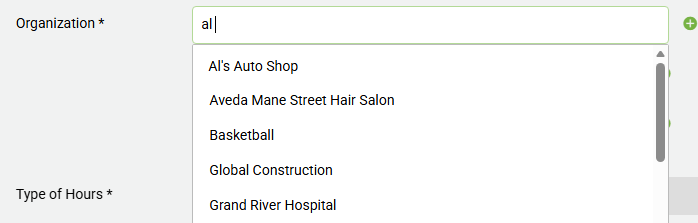
SEARCH & SELECT
Then, search for and select an employer from your database, or click + New Employer to add a new employer.
Tip: Use broader search terms when possible. For example, search for "star" instead of "Starbucks" to account for variations or spelling differences, such as "Starbuck’s" instead of "Starbucks".
Once the employer is selected from the drop-down, select the related Contact (your supervisor) and Student Position (your placement job title).
Once your hour log has been saved and/or submitted, the Organization’s details will be saved and automatically populated for future hour log entries.
Important Reminder: If a student works for more than one employer during the semester, they must update the Organization field for each weekly log to reflect the employer or supervisor receiving the hour submission(s).