
To speed things up and conserve communications bandwidth, browsers (e.g. Chrome, Firefox) attempt to keep local copies of pages, images, and other content you’ve visited, so that it does not need to be downloaded again later. Occasionally this caching scheme goes awry (e.g. the browser insists on showing out-of-date content) making it necessary to bypass the cache and force your browser to re-download a web page’s complete, up-to-date content.
➡️ Before proceeding with the steps below in your Settings, try pressing Ctrl+F5 to clear the cache on your page. Or, some browsers such as Chrome will automatically clear cache when the browser is closed (i.e. close all tabs & windows, then re-open Chrome). This could be all that is necessary to clear your browser's cache. If not, please review the other options below.
In Chrome
On your keyboard, press the Ctrl button and F5 key at the same time
or,
- On your computer, open Chrome.
- At the top right, click More
.
- Click More tools
Clear browsing data.
- At the top, choose a time range. To delete everything, select All time.
- Next to “Cached images and files,” check the box.
- Click Clear data.
- Close Chrome completely (all tabs), and re-open Chrome again to notice the effects of clearing your cache.
NOTE: There is no need to check off the Cookies and Browsing History boxes when clearing our cache. That could remove saved content and passwords from your computer.
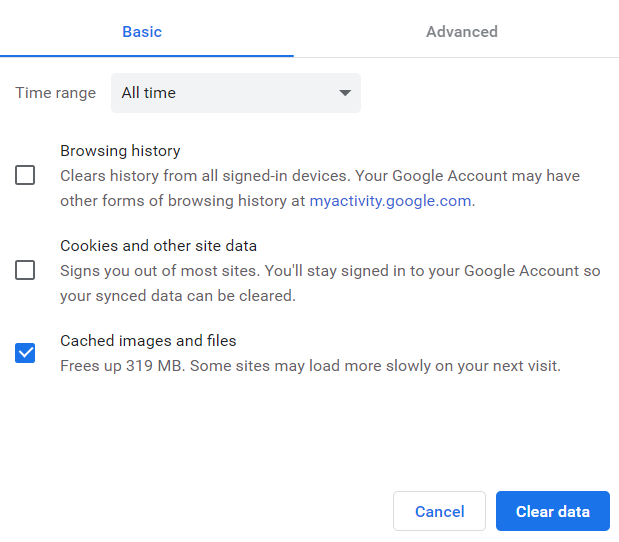
Reference: Google Account Help; Wikipedia
In Firefox
1. On your computer, open Firefox
2. Click on the  icon in the top right corner

3. Next, Select the Privacy & Security settings on the left side of the screen
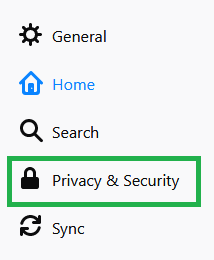
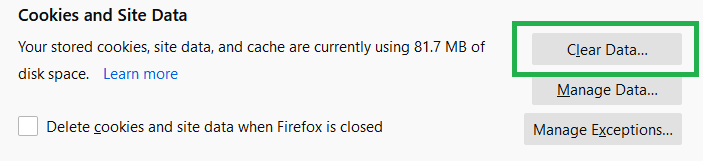
4. Scroll down until you find the Cookies and Site Data then click on Clear Data
5. A menu will pop up with 2 options, make sure to uncheck the Cookies and Site Data option or else your saved login information will be deleted.
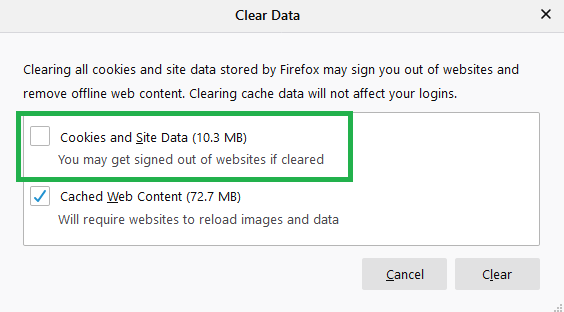
6. Select  then exit your settings, any changes you make are automatically saved
Reference: Support Mozilla
In Microsoft Edge
1. On your computer, open Microsoft Edge
2. Click on the … icon in the top right corner

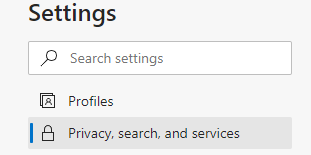
3. Next, Select the Privacy, search, and services settings on the left side of the screen
4. Under Clear browsing data, select the  button
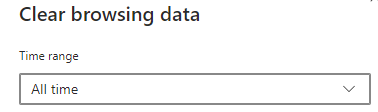
5. Set the Time Range to the desired setting
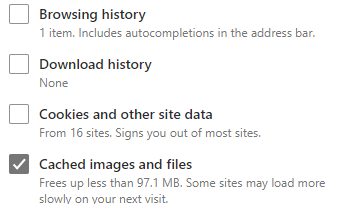
6. A pop-up menu will appear, uncheck Browsing history, Download history, and Cookies and other site data. Make sure Cached images and files is checked.
7. Click on the  button then exit your settings
Reference: Lifewire
 (or, Edit for existing hours)


 link next to the incorrect Weekly Log